


📝 Update (March 2026): Since this post was published, Squad has been updated significantly. See the notes at the bottom for updated commands and the latest symlink setup. Also check out Part 7 of the Scaling AI series where I explore the enterprise state problem more deeply.
I’ve been running multiple AI agents in parallel using Git worktrees for a while now, and it’s been a productivity multiplier. But recently I stumbled upon Squad—a framework by Brady Gaster that lets you define an entire AI team with specialized roles, all orchestrated through GitHub Copilot. Think of it as going from managing individual AI agents to having a full team with a tech lead, developers, testers, and a documentation writer, all coordinated automatically.
The catch? Squad works by adding configuration files directly into your repository—.ai-team/ for team state, .ai-team-templates/ for role definitions, and .github/agents/squad.agent.md for the main agent. For a personal project, that’s fine. But I wanted to try it on a work repo where I can’t just commit experimental AI framework files. My teammates didn’t sign up for 38 new files appearing in their next pull.
So I found a way to use Squad on any repo without actually changing it. Here’s how.
Squad in Action
Before we get into the setup, here’s what Squad looks like once it’s running. When you first invoke it, it greets you and asks about your project:
1
2
3
4
5
6
7
> show me the team

Squad v0.4.1
⚠️ Heads up: In v0.5.0, .ai-team/ will be renamed to .squad/.

Hey Tamir! No team exists yet for this project. Let's set one up.
What are you building? (language, stack, what it does)
After describing what you’re building, Squad creates a full team with specialized roles:
1
2
3
4
5
6
7
8
9
10
11
12
✅ Team hired. Try: "Holden, set up the project structure"

Your squad:
🏗️  Holden   — Lead           Architecture, TypeSpec API design, code review
🔧  Amos     — Backend Dev    C# controllers, worker, Cosmos DB, queue processing
⚙️  Naomi    — Infra/DevOps   Aspire integration, deployment, config generation
🧪  Drummer  — Tester         Unit tests, integration tests, validation
📋  Scribe   — (silent)       Memory, decisions, session logs
🔄  Ralph    — (monitor)      Work queue, backlog, keep-alive

The RP rename to ************* is captured in decisions.md
— the whole team will see it.
You can then ask the team to review your codebase. Here, “Holden” (the lead) produced a thorough architecture review with prioritized findings:
1
2
3
4
5
6
7
8
9
10
11
12
13
14
15
16
17
18
19
20
21
> go over the docs and code and give your feedback and suggestions

Holden's review is in. Here's the executive summary:

🏗️ Holden's Architecture Review — ********** Skeleton

Verdict: The skeleton is architecturally sound — TypeSpec definitions
are comprehensive, ***** framework integration is correct, and Aspire
dev experience is polished. But only 1 of 5 resource types
(**********) is wired end-to-end.

Critical Findings:
 #  Issue                                                    Priority
 1  Only Workspace has Config, Validator, DeploymentProvider   P1
 2  Bug: ****************** ResourceId references wrong type   P1
 3  RunCustomGlobalExceptionHandler only lists "workspaceName" P1
 4  AppHost only creates one Cosmos container                  P1

What's Working Well:
 ✅ Discriminated unions for polymorphism (providers, tiers)
 ....
And when it’s time to fix things, Squad delegates to the right team members in parallel—Amos handles the code fix while Drummer improves test diagnostics:
1
2
3
4
5
6
7
8
9
10
11
12
13
14
15
16
17
18
19
> fix the things but first run the tests

Found the root cause. AddAzureQueueServiceClient("queues") registers
an unkeyed singleton, but line 57 tries to resolve a keyed service.
The fix is AddKeyedAzureQueueServiceClient("queues").

Now spawning Amos and Drummer — in parallel.

🔧 Amos (claude-sonnet-4.5) — fixing Worker queue registration + TypeSpec bug
🧪 Drummer (claude-sonnet-4.5) — improving test diagnostics on failure

Both fixes applied and verified with a clean build (0 errors).

FIX 1 — Worker/Program.cs:
  AddAzureQueueServiceClient → AddKeyedAzureQueueServiceClient
  AddAzureKeyVaultClient → AddKeyedAzureKeyVaultClient

FIX 2 — cluster-group.tsp:
  .....
All of this happened on my work repo, without a single Squad file being committed. Here’s how I set it up.
What is Squad?
Squad is an AI team framework that sits on top of GitHub Copilot. Instead of you giving instructions to a single AI agent, you define a team—each member has a role, skills, and responsibilities. When you give Squad a task, it breaks it down and delegates work to the right team members.
For example, you might have:
- A tech lead who plans the architecture and reviews code
- A developer who writes the implementation
- A tester who creates and runs tests
- A docs writer who updates documentation
You initialize it with npx github:bradygaster/squad, define your team members, and Squad generates the agent definition that GitHub Copilot discovers automatically. It’s clever and well-designed.
But here’s the thing—all of Squad’s files live inside your repo. And if you’re working on a shared codebase, that’s a problem.
The Problem: I Don’t Own the Repo’s .gitignore
I wanted to try Squad on a project I’m actively working on—a real codebase with real complexity, not a toy example. But I had two constraints:
- No committing Squad files - My team hasn’t agreed to adopt Squad, and I don’t want to push framework experiments into the shared repo
- No modifying .gitignore - Even adding gitignore entries is a change that shows up in PRs and affects everyone
I needed Squad’s files to exist in my working directory (so Copilot can discover them), but be completely invisible to Git—without changing any tracked files.
The Solution: A Side Repo + Symlinks + Git Exclude
The approach is straightforward: keep Squad’s files in a separate repo, symlink them into your working directory, and use Git’s local exclude mechanism to hide them.
Here’s the setup:
Step 1: Create the Squad Repo
Create a separate repository next to your working directory. I keep mine in the same parent folder:
1
2
C:\repos\my-project\              ← your real repo
C:\repos\squad-for-my-project\    ← Squad lives here
Initialize Squad in this separate repo:
1
2
cd C:\repos\squad-for-my-project
npx github:bradygaster/squad
Follow the prompts to set up your team. Squad will create the .ai-team/, .ai-team-templates/, and .github/agents/squad.agent.md files in this repo.
Commit everything here—this is your Squad repo, you own it completely.
Step 2: Create Symlinks into Your Real Repo
Now create symbolic links from your real repo pointing to the Squad repo’s files:
1
2
3
4
5
6
7
8
9
10
11
cd C:\repos\my-project

# Directory symlinks for team state and templates
New-Item -ItemType SymbolicLink -Path ".ai-team" -Target "C:\repos\squad-for-my-project\.ai-team"
New-Item -ItemType SymbolicLink -Path ".ai-team-templates" -Target "C:\repos\squad-for-my-project\.ai-team-templates"

# Create .github\agents if it doesn't exist
New-Item -ItemType Directory -Path ".github\agents" -Force

# File symlink for the agent definition
cmd /c mklink ".github\agents\squad.agent.md" "C:\repos\squad-for-my-project\.github\agents\squad.agent.md"
Note: On Windows, you might need to run your terminal as Administrator, or have Developer Mode enabled for symlink creation to work.
After this, your real repo’s directory looks like it has Squad installed—Copilot will discover squad.agent.md and everything works. But the actual files live in your side repo.
Step 3: Hide Everything with Git Exclude
Here’s the key trick. Instead of adding entries to .gitignore (which is a tracked file that everyone sees), use .git/info/exclude. This file works exactly like .gitignore, but it’s local to your machine and never committed.
1
2
3
4
5
6
7
8
9
10
# Add Squad entries to the local-only exclude file
Add-Content -Path ".git\info\exclude" -Value @"

# Squad (symlinked from side repo)
.ai-team
.ai-team/
.ai-team-templates
.ai-team-templates/
.github/agents/squad.agent.md
"@
That’s it. Git now ignores all the Squad symlinks, but only on your machine. No changes to .gitignore, no changes to any tracked files. Your colleagues see nothing.
Git Worktrees Note: If you’re using Git worktrees (like I am), the
.git/info/excludefile lives in the main repo’s.gitdirectory, not in the worktree. The entries apply to all worktrees of that repo, which is exactly what you want—set it once, it works everywhere.
Verify It Works
1
2
3
4
5
6
# Confirm Git ignores the Squad files
git check-ignore -v .ai-team .ai-team-templates .github/agents/squad.agent.md

# Output should show they're excluded via .git/info/exclude:
# .git/info/exclude:8:.ai-team    .ai-team
# .git/info/exclude:10:.ai-team-templates    .ai-team-templates
And in VS Code, open Copilot Chat, type @ and you should see the Squad agent listed.
A Windows Gotcha with Symlinks
I ran into a subtle issue on Windows that’s worth mentioning. When Git has core.symlinks=true, it sees directory symlinks as single file entries, not as directories. This means a gitignore entry like .ai-team/ (with trailing slash, matching directories) won’t match the symlink, because Git sees it as a file.
The fix is to add both forms:
1
2
.ai-team          # matches the symlink-as-file
.ai-team/         # matches if traversed as directory
Without both entries, git check-ignore silently fails to match, and your Squad files show up in git status. I lost 20 minutes figuring that one out.
Working with Squad
Once everything is set up, you work with Squad through Copilot Chat using the @squad agent. Squad delegates work to the right team members based on their defined roles and skills. The team state (who’s doing what, what’s been decided) persists in the .ai-team/ directory—which lives in your side repo and can be committed there independently.
SquadUI: A Visual Companion
One thing I’d recommend pairing with Squad is the SquadUI VS Code extension by Jeffrey T. Fritz. While Squad itself lives in the Copilot Chat, SquadUI gives you a dedicated sidebar with panels for your team roster, installed skills, and decisions—all updating in real time as files in .ai-team/ change.
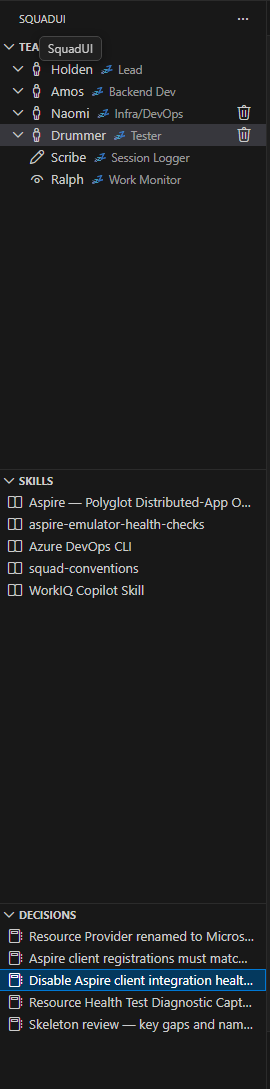
You can also browse and install skills from the awesome-copilot catalog and skills.sh directly from the sidebar. It makes the whole Squad experience feel like a proper team management tool rather than just a chat agent.
The nice thing is that since SquadUI reads from .ai-team/, it works perfectly with our symlink setup—it doesn’t care that the files are symlinked from another repo.
Wrapping Up
Squad is an interesting approach to AI-assisted development, and the symlink + git exclude pattern lets you try it on any repo without asking anyone’s permission. The whole setup takes about 5 minutes, and if you decide Squad isn’t for you, just delete the symlinks—your repo is exactly as it was.
The git/info/exclude trick is the real gem here. I’ve started using it for other local-only tooling too—anything I want on my machine but not in the shared codebase. It’s one of those Git features that’s been there forever but most people never discover.
Updates
March 2026 — Community Feedback & Updated Commands
Thank you to everyone who tried this setup! Several readers reached out after implementing the symlink pattern in their own repos, and I wanted to share their feedback along with some important updates.
One reader got the setup working on their monorepo and shared some really helpful notes about what’s changed since I originally published this:
Since this post went live, Squad has evolved quite a bit. The team renamed directories, moved to an official npm package, and added new features like squad.config.ts for team configuration and GitHub Actions integration. Here’s what changed:
Updated install command:
1
npx @bradygaster/squad-cli    # instead of: npx github:bradygaster/squad
Updated directory structure:
.ai-team/→.squad/(directory renamed).ai-team-templates/→ no longer exists as a separate directory- Team configuration now lives in
squad.config.tsat the repo root - GitHub Actions workflows are in
.github/workflows/for automation
Updated symlink setup (for the latest version):
1
2
3
4
5
6
7
8
9
10
11
12
13
14
# Directory symlink for team state
New-Item -ItemType SymbolicLink -Path ".squad" -Target "<squad-repo-path>\.squad"

# File symlink for the agent definition
cmd /c mklink ".github\agents\squad.agent.md" "<squad-repo-path>\.github\agents\squad.agent.md"

# Add to .git/info/exclude
Add-Content -Path ".git\info\exclude" -Value @"

# Squad (symlinked from side repo)
.squad
.squad/
.github/agents/squad.agent.md
"@
The core pattern still works exactly the same way—keep Squad’s files in a separate repo, symlink them in, and use .git/info/exclude to hide them locally. You just need to adjust the directory names for the new version.
For a working example of the symlink pattern in a real production repo, check out vapor-squad— A real team at Microsoft is using this approach to keep Squad state separate from their main codebase.
If you’re coming from an older Squad version, the migration guide has step-by-step instructions for upgrading.