


I spend a lot of time driving. During those drives, I often open ChatGPT on my phone (hands-free, voice mode) to brainstorm architecture decisions or research technical approaches for problems I’m working on. Meanwhile, my Roo agent is back on DevBox, grinding through the actual implementation work.
What is DevBox? Microsoft DevBox is a cloud-based development environment that gives you powerful dev machines in the cloud. I find it incredibly useful because:
- Work continues even when I close my laptop—agents keep running in the background
- I can spin up multiple machines for different projects or experiments
- No more “works on my machine” problems—everyone on the team gets the same environment
- I can access my full dev setup from anywhere, even from my phone using Windows App, which lets me see the agent’s work and give commands remotely
The problem? When Roo hits a decision point and needs my input, it just… stops. By the time I get home 40 minutes later, I’ve lost all that potential progress. The agent was ready to work, I was available to answer questions, but we had no way to communicate.
I’d already given my AI agent eyes with Playwright MCP. Why not give it a mouth and ears too?
See It In Action
VoiceMCP in action: Roo asking questions via voice, receiving spoken responses, and continuing work hands-free
The Problem: AI Agents Can’t Talk to You
AI coding agents are incredible at autonomous work, but they have a fundamental limitation—they can only communicate through text in their UI. This creates several pain points:
- They get stuck waiting - When they need clarification or approval, work stops
- Lost context - By the time you return, you’ve forgotten what you asked them to do
- Wasted commute time - That 30-minute drive could be productive collaboration time
- Can’t multitask - You need to be at your desk, eyes on the screen
The agents work asynchronously, but communication doesn’t. I wanted bidirectional voice communication—my agent could ask me questions through my car speakers, and I could respond hands-free while keeping my eyes on the road.
The Solution: VoiceMCP
VoiceMCP is a Model Context Protocol server that gives AI agents the ability to communicate via voice. It’s built on:
- .NET 10 with Semantic Kernel for AI orchestration
- Azure OpenAI for both Text-to-Speech (TTS) and Speech-to-Text (Whisper)
- NAudio for audio recording and playback
- MCP Protocol to expose voice tools to any MCP-compatible client
The server exposes two main tools:
ask_user- Ask a question and get a voice responseask_for_approval- Present a work summary and get approval/rejection
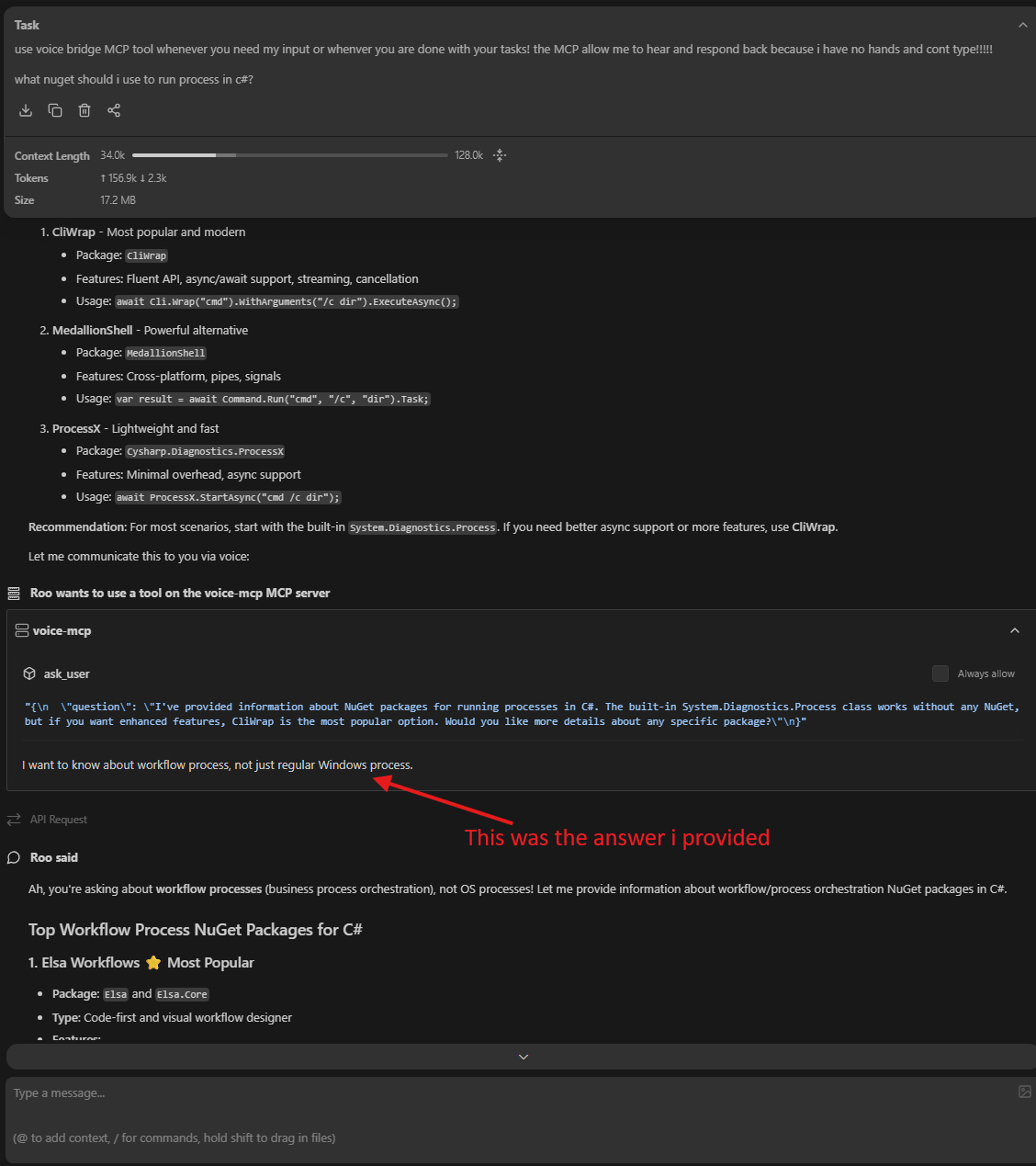 Roo calling the ask_user tool to get voice input from the developer
How It Works: Architecture
Here’s how the interaction flows:
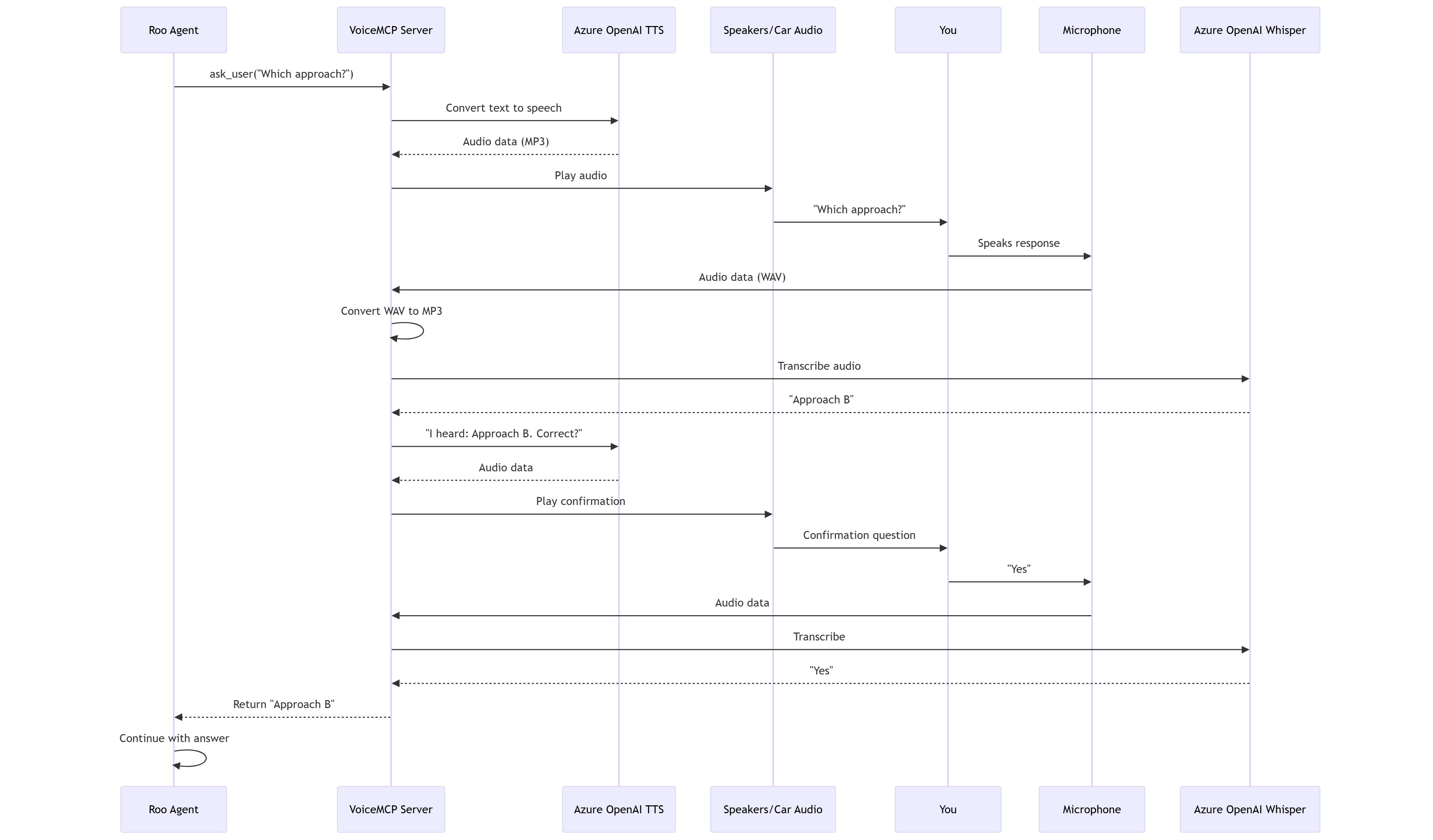 Sequence diagram showing the complete voice interaction flow between Roo, VoiceMCP, Azure OpenAI services, and the user
The interaction flow:
- Agent asks a question - Roo calls the
ask_userMCP tool - TTS speaks it - Azure OpenAI converts text to natural speech
- You hear it - Through your speakers or car audio via Bluetooth
- You respond - Your microphone picks up your voice
- Whisper transcribes - Azure OpenAI converts speech back to text
- Confirmation loop - The agent reads back what it heard and asks for confirmation
- Agent continues - With your verified answer, work proceeds
The Code: Building Voice Communication
Let’s walk through the key implementation details.
Setting Up the MCP Server
The Program.cs file bootstraps the MCP server with Semantic Kernel:
1
2
3
4
5
6
7
8
9
10
11
12
13
14
15
16
17
18
19
20
21
22
23
24
25
26
27
28
29
30
31
32
33
34
35
36
37
38
39
40
41
42
43
44
45
46
47
var builder = Host.CreateApplicationBuilder(args);

// Configure logging to stderr (stdout is for MCP protocol)
// Clear default providers to prevent stdout pollution
builder.Logging.ClearProviders();
builder.Logging.AddConsole(options =>
{
    options.LogToStandardErrorThreshold = LogLevel.Trace;
});

// Register MCP server with stdio transport
builder.Services
    .AddMcpServer()
    .WithStdioServerTransport()
    .WithToolsFromAssembly();

// Register voice service
builder.Services.AddSingleton<IVoiceService, SemanticKernelVoiceService>();

// Hybrid credential loading: Env vars (for MCP clients) → User secrets (dev)
var azureEndpoint = Environment.GetEnvironmentVariable("AZURE_OPENAI_ENDPOINT");
var azureApiKey = Environment.GetEnvironmentVariable("AZURE_OPENAI_API_KEY");
var azureTtsDeployment = Environment.GetEnvironmentVariable("AZURE_OPENAI_TTS_DEPLOYMENT");
var azureWhisperDeployment = Environment.GetEnvironmentVariable("AZURE_OPENAI_WHISPER_DEPLOYMENT");

// Fallback to user secrets in development
var configuration = builder.Configuration;
if (string.IsNullOrEmpty(azureEndpoint))
{
    azureEndpoint = configuration["AzureOpenAI:Endpoint"];
    azureApiKey = configuration["AzureOpenAI:ApiKey"];
    azureTtsDeployment = configuration["AzureOpenAI:TtsDeploymentName"];
    azureWhisperDeployment = configuration["AzureOpenAI:WhisperDeploymentName"];
}

// Add Semantic Kernel with Azure OpenAI services
builder.Services.AddKernel()
    .AddAzureOpenAITextToAudio(
         deploymentName: azureTtsDeployment ?? throw new InvalidOperationException("TTS deployment name is not configured"),
         endpoint: azureEndpoint ?? throw new InvalidOperationException("Azure OpenAI endpoint is not configured"),
         apiKey: azureApiKey ?? throw new InvalidOperationException("Azure OpenAI API key is not configured"))
    .AddAzureOpenAIAudioToText(
        deploymentName: azureWhisperDeployment ?? throw new InvalidOperationException("Whisper deployment name is not configured"),
        endpoint: azureEndpoint ?? throw new InvalidOperationException("Azure OpenAI endpoint is not configured"),
        apiKey: azureApiKey ?? throw new InvalidOperationException("Azure OpenAI API key is not configured"));

await builder.Build().RunAsync();
Key points:
ClearProviders()prevents default logging from polluting stdout (critical for MCP protocol)- All logs go to
stderrbecausestdoutis reserved for MCP protocol messages - Null-coalescing operators provide clear error messages when configuration is missing
- Hybrid configuration supports both environment variables (for MCP clients) and user secrets (for development)
- Semantic Kernel handles the Azure OpenAI integration cleanly
The AskUser Tool with Confirmation Loop
The VoiceTools.cs file implements the voice interaction tools. Here’s the ask_user tool with its built-in confirmation loop:
1
2
3
4
5
6
7
8
9
10
11
12
13
14
15
16
17
18
19
20
21
22
23
24
25
26
27
28
29
30
31
32
33
34
35
36
37
38
39
40
41
42
43
44
45
46
47
48
49
50
51
52
53
54
55
56
57
58
59
60
61
62
[McpServerTool, Description("Ask the user a question via voice and get a confirmed text response")]
public async Task<string> AskUser(string question)
{
    const int MAX_RETRIES = 4;
    int retryCount = 0;

    // 1. Speak the question
    await _voiceService.SpeakAsync(question);

    while (retryCount < MAX_RETRIES)
    {
        // 2. Listen for response
        string recognizedText = await _voiceService.ListenAsync();

        if (string.IsNullOrWhiteSpace(recognizedText))
        {
            retryCount++;
            if (retryCount >= MAX_RETRIES)
            {
                await _voiceService.SpeakAsync(
                    "I'm sorry, I couldn't understand your response after multiple attempts.");
                return "ERROR: Could not understand response after 4 attempts";
            }

            int attemptsRemaining = MAX_RETRIES - retryCount;
            await _voiceService.SpeakAsync(
                $"I didn't catch that. Please try again. {attemptsRemaining} attempt{(attemptsRemaining > 1 ? "s" : "")} remaining.");
            continue;
        }

        // 3. Confirmation Loop - Read back what we heard
        await _voiceService.SpeakAsync(
            $"I heard: {recognizedText}. Is this correct? Say yes or no.");
        string confirmation = await _voiceService.ListenAsync();

        if (IsAffirmative(confirmation))
        {
            return recognizedText;
        }
        else
        {
            await _voiceService.SpeakAsync("Okay, let's try again. What was your answer?");
            // Loop continues to ask the question again
        }
    }

    return "ERROR: Could not understand response after 4 attempts";
}

private bool IsAffirmative(string text)
{
    if (string.IsNullOrWhiteSpace(text)) return false;
    text = text.ToLowerInvariant().Trim();

    return text.Contains("yes") ||
           text.Contains("correct") ||
           text.Contains("yeah") ||
           text.Contains("yep") ||
           text.Contains("sure") ||
           text.Contains("right") ||
           text == "y";
}
Why the confirmation loop matters:
Voice recognition isn’t perfect, especially in noisy environments like a car. The confirmation loop ensures:
- Accuracy - You verify what the AI heard before it acts on it
- Trust - You know exactly what response the agent will use
- Error recovery - Natural retry mechanism without frustration
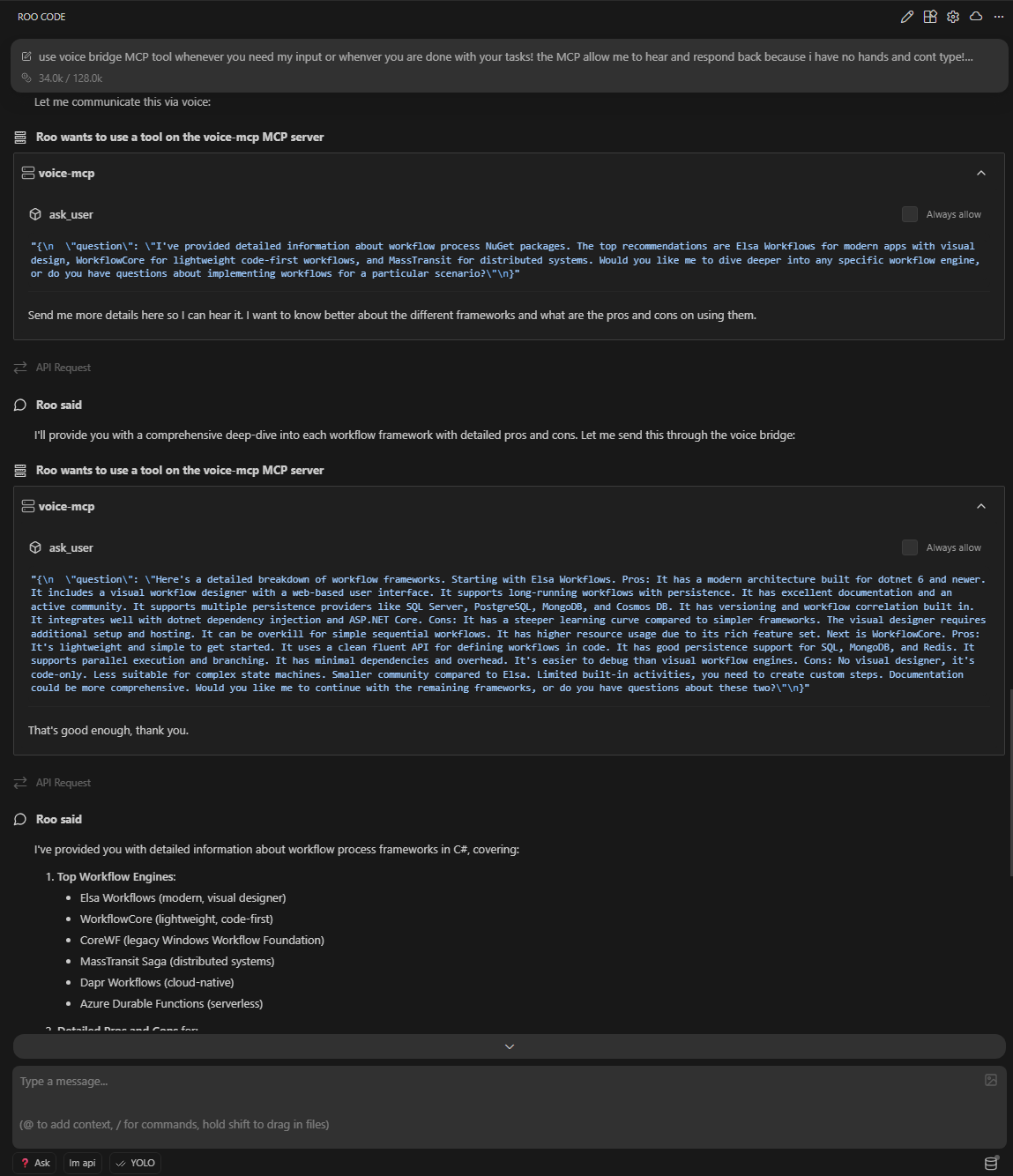 The complete confirmation flow: question asked, voice response transcribed, confirmation requested, and verified answer returned
Audio Processing: Recording and Transcription
The SemanticKernelVoiceService.cs handles the complex audio processing:
1
2
3
4
5
6
7
8
9
10
11
12
13
14
15
16
17
18
19
20
21
22
23
24
25
26
27
28
public async Task<string> ListenAsync()
{
    // Record audio from microphone
    var audioData = await RecordAudioAsync();

    if (audioData == null || audioData.Length == 0)
    {
        Console.Error.WriteLine("No audio data recorded");
        return string.Empty;
    }

    // Convert WAV to MP3 for better Whisper compatibility
    var mp3Data = ConvertWavToMp3(audioData);

    // Send to Azure OpenAI Whisper
    var audioContent = new AudioContent(mp3Data, mimeType: "audio/mp3");
    var executionSettings = new OpenAIAudioToTextExecutionSettings
    {
        Language = "en",
        Filename = "audio.mp3",
        Temperature = 0.0f // Most accurate transcription
    };

    var textContent = await _audioToTextService.GetTextContentAsync(
        audioContent, executionSettings);

    return textContent?.Text ?? string.Empty;
}
Audio recording with silence detection:
1
2
3
4
5
6
7
8
9
10
11
12
13
14
15
16
17
18
19
20
21
22
23
24
25
26
27
28
29
30
31
32
33
34
35
36
private async Task<byte[]> RecordAudioAsync()
{
    var silenceThreshold = 300;
    var silenceDuration = TimeSpan.FromSeconds(2.5);
    var hasSpoken = false;
    var silenceStart = DateTime.MaxValue;

    using var waveIn = new WaveInEvent
    {
        WaveFormat = new WaveFormat(16000, 1) // 16kHz, mono for Whisper
    };

    waveIn.DataAvailable += (sender, e) =>
    {
        recordedBytes.AddRange(e.Buffer.Take(e.BytesRecorded));

        var level = CalculateAudioLevel(e.Buffer, e.BytesRecorded);

        if (level > silenceThreshold)
        {
            hasSpoken = true;
            silenceStart = DateTime.MaxValue;
        }
        else if (hasSpoken && silenceStart == DateTime.MaxValue)
        {
            silenceStart = DateTime.Now;
        }
        else if (hasSpoken && (DateTime.Now - silenceStart) >= silenceDuration)
        {
            waveIn.StopRecording(); // Auto-stop after 2.5s of silence
        }
    };

    waveIn.StartRecording();
    // ... rest of recording logic ...
}
The silence detection algorithm:
- Records at 16kHz mono (optimal for Whisper)
- Continuously calculates audio levels
- Detects when you start speaking (level > threshold)
- Waits for 2.5 seconds of silence after you stop
- Auto-stops recording to send to Whisper
This creates a natural conversation flow—you don’t need to press any buttons, just speak and pause.
Text-to-Speech: Making the AI Speak
1
2
3
4
5
6
7
8
9
10
11
12
13
14
15
16
17
18
19
20
21
22
23
24
25
26
27
28
29
public async Task SpeakAsync(string text)
{
    var executionSettings = new OpenAITextToAudioExecutionSettings
    {
        Voice = "alloy", // Natural-sounding voice
        ResponseFormat = "mp3"
    };

    var audioContent = await _textToAudioService.GetAudioContentAsync(
        text, executionSettings);

    // Play the audio through speakers
    await PlayAudioAsync(audioContent.Data.Value.ToArray());
}

private async Task PlayAudioAsync(byte[] audioData)
{
    using var memoryStream = new MemoryStream(audioData);
    using var reader = new Mp3FileReader(memoryStream);
    using var waveOut = new WaveOutEvent();

    var tcs = new TaskCompletionSource<bool>();

    waveOut.PlaybackStopped += (sender, e) => tcs.TrySetResult(true);
    waveOut.Init(reader);
    waveOut.Play();

    await tcs.Task; // Wait for playback to complete
}
The Azure OpenAI TTS “alloy” voice sounds remarkably natural—far better than the robotic voices of the past.
Configuration in Roo
Here’s how I configured VoiceMCP in my Roo setup (with sensitive info sanitized):
File: .roo/mcp.json
1
2
3
4
5
6
7
8
9
10
11
12
13
14
15
16
17
18
19
20
21
{
  "mcpServers": {
    "voice-mcp": {
      "command": "dotnet",
      "args": [
        "run",
        "--no-build",
        "--project",
        "C:/Users/[username]/source/repos/mcp-voice-assist/VoiceMCP/VoiceMCP.csproj"
      ],
      "env": {
        "AZURE_OPENAI_ENDPOINT": "https://[your-resource].openai.azure.com/",
        "AZURE_OPENAI_API_KEY": "[your-api-key]",
        "AZURE_OPENAI_TTS_DEPLOYMENT": "tts",
        "AZURE_OPENAI_WHISPER_DEPLOYMENT": "whisper"
      },
      "alwaysAllow": ["ask_user", "ask_for_approval"],
      "timeout": 3600
    }
  }
}
Configuration highlights:
alwaysAllow- Roo won’t ask permission each time to use voice tools (crucial for hands-free operation)timeout: 3600- Extended to 1 hour because voice interactions take longer than text- Environment variables - Azure OpenAI credentials passed securely
--no-build- Assumes you’ve pre-built the project for faster startup
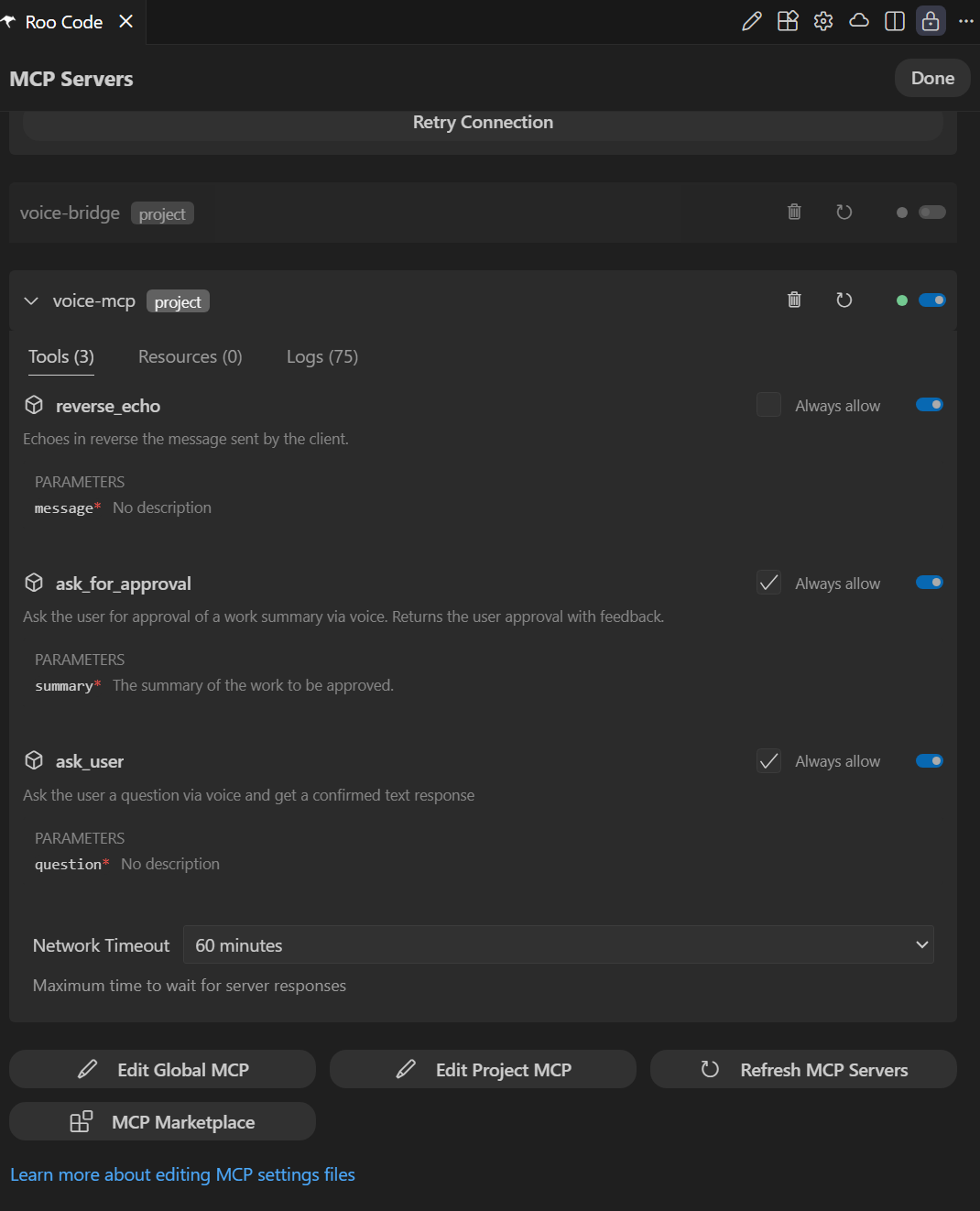 VoiceMCP configured in Roo’s MCP settings with alwaysAllow permissions and extended timeout
Why This Matters: The Future of AI Collaboration
Giving AI agents a voice fundamentally changes how we collaborate with them:
From Synchronous to Asynchronous
Before VoiceMCP, you needed to be at your desk, ready to respond to prompts. Now your AI can reach you anywhere—in the car, on a walk, even while cooking dinner.
From Text-Only to Multimodal
I previously wrote about giving AI agents eyes with Playwright MCP. Now they have:
- Eyes - Can see and interact with web applications
- Voice - Can speak to you and hear your responses
- Hands - Can write code and execute commands
We’re building genuinely multimodal AI agents.
From Desktop-Bound to Mobile
The biggest win? Liberation from the desk. Your most productive coding sessions might happen during your commute, not at your workstation.
Technical Considerations
Audio Quality and Noise
Voice recognition works surprisingly well in cars with:
- Bluetooth audio - Routes TTS through car speakers with good clarity
- Phone mic - Modern phones have excellent noise cancellation
- Confirmation loops - Catch any misrecognitions before they cause problems
I’ve found it works reliably even with:
- Highway noise at 70 mph
- Radio playing softly in background
- Windows cracked for air
Privacy and Security
Important considerations:
- Audio is ephemeral - Not stored, only sent to Whisper for transcription
- Transcripts in logs - Text responses appear in Roo’s conversation history
- API keys - Stored in environment variables, never in code
- Local processing - Audio recorded locally, only MP3 sent to cloud
Cost
Azure OpenAI pricing (as of Nov 2025):
- TTS (Text-to-Speech) - ~$15 per million characters
- Whisper (Speech-to-Text) - ~$0.006 per minute
For typical usage (10-20 voice interactions per day), expect ~$5-10/month.
Getting Started
Want to try it yourself? The full source code is on GitHub: tamirdresher/mcp-voice-assist
Quick Setup
- Clone the repo:
1 2
git clone https://github.com/tamirdresher/mcp-voice-assist.git cd mcp-voice-assist - Build the project:
1
dotnet build VoiceMCP.sln --configuration Release - Configure Azure OpenAI:
1
2
3
4
5
# Set environment variables
$env:AZURE_OPENAI_ENDPOINT = "https://your-resource.openai.azure.com/"
$env:AZURE_OPENAI_API_KEY = "your-api-key"
$env:AZURE_OPENAI_TTS_DEPLOYMENT = "tts-1"
$env:AZURE_OPENAI_WHISPER_DEPLOYMENT = "whisper-1"
Add to Roo config (
.roo/mcp.jsonas shown above)- Restart Roo - The voice tools will be available
Prerequisites
- .NET 10 SDK
- Azure OpenAI account with TTS and Whisper deployments (see below)
- Windows OS (for NAudio)
- Microphone and speakers
Deploying Azure OpenAI Models
Before you can use VoiceMCP, you need to deploy both TTS and Whisper models in Azure OpenAI. Here’s what I learned setting this up:
If you’re creating a new Azure OpenAI resource, choose East US 2 to get both models.
Deploying the Models
Using Azure CLI, here’s how to deploy both models:
1. Deploy Whisper (Speech-to-Text):
1
2
3
4
5
6
7
8
9
az cognitiveservices account deployment create \
  --resource-group <RESOURCE_GROUP> \
  --name <ACCOUNT_NAME> \
  --deployment-name whisper \
  --model-name whisper \
  --model-version "001" \
  --model-format OpenAI \
  --sku-capacity 1 \
  --sku-name "Standard"
2. Deploy TTS (Text-to-Speech):
1
2
3
4
5
6
7
8
9
az cognitiveservices account deployment create \
  --resource-group <RESOURCE_GROUP> \
  --name <ACCOUNT_NAME> \
  --deployment-name tts \
  --model-name gpt-4o-mini-tts \
  --model-version "2025-03-20" \
  --model-format OpenAI \
  --sku-capacity 1 \
  --sku-name "GlobalStandard"
Important notes:
- Start with capacity 10, but you may need to increase it
Watch Out for Rate Limits
I initially deployed with capacity 1 (1K tokens per minute), but hit rate limits during testing. Voice interactions generate more API calls than you might expect—each question involves:
- TTS call to speak the question
- Whisper call to transcribe your response
- TTS call to confirm what was heard
- Whisper call to transcribe your confirmation
That’s 4 API calls per interaction. I increased my TPM capacity to avoid rate limiting during active use.
Verify Your Deployments
Check that both models are deployed successfully:
1
2
3
4
az cognitiveservices account deployment list \
  --resource-group <RESOURCE_GROUP> \
  --name <ACCOUNT_NAME> \
  --query "[].{Name:name, Model:properties.model.name, SKU:sku.name, Status:properties.provisioningState}" -o table
You should see:
1
2
3
4
Name     Model            SKU             Status
-------  ---------------  --------------  ---------
whisper  whisper          Standard        Succeeded
tts      gpt-4o-mini-tts  GlobalStandard  Succeeded
Conclusion
Voice-enabled AI agents aren’t science fiction—they’re practical tools that solve real problems. By giving your AI agent a voice, you:
- Unlock asynchronous collaboration - Work continues while you’re away
- Maximize productivity - Turn commute time into development time
- Reduce context switching - No need to constantly check on your agent
- Enable hands-free workflows - Safer and more convenient
Combined with visual capabilities from Playwright MCP, we’re moving toward truly multimodal AI pair programming. Your agent can see your application, hear your voice, and speak back to you—creating a collaboration experience that feels remarkably natural.
The code is open source, the setup takes about 30 minutes, and the productivity gains are immediate. If you’re already using AI coding agents, adding voice communication is the next logical step.
Now if you’ll excuse me, I need to drive home and check on what my agent has been building.
Using VoiceMCP or building something similar? I’d love to hear about your experience in the comments!