


If you’re working with Model Context Protocol (MCP) servers in AI assistants like Roo Code or GitHub Copilot, you’ve probably encountered this frustrating scenario: You configure an MCP server, the AI assistant tries to use it, it fails with a cryptic timeout error, and you have no idea why. The error message from Roo was minimal: McpError: MCP error -32001: Request timed out. That’s it. No stack trace from the server. No detailed logs. No indication of what went wrong.
I hit this exact problem while trying to use the Playwright MCP server. Every attempt resulted in the same timeout after 50 seconds. I couldn’t see what was happening, so I built a tool to intercept and log all communication between the MCP client and server. What I discovered led me to build an MCP stdio proxy that’s now an essential part of my debugging toolkit.
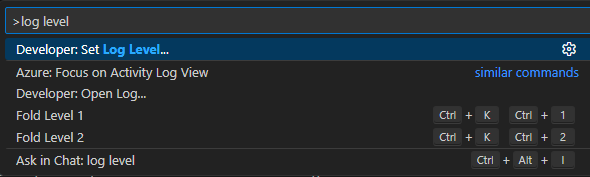
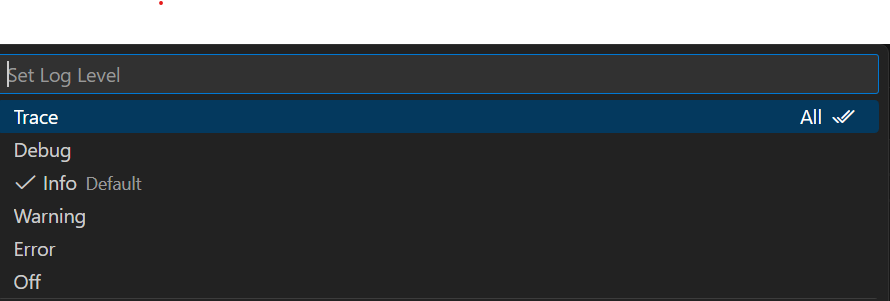
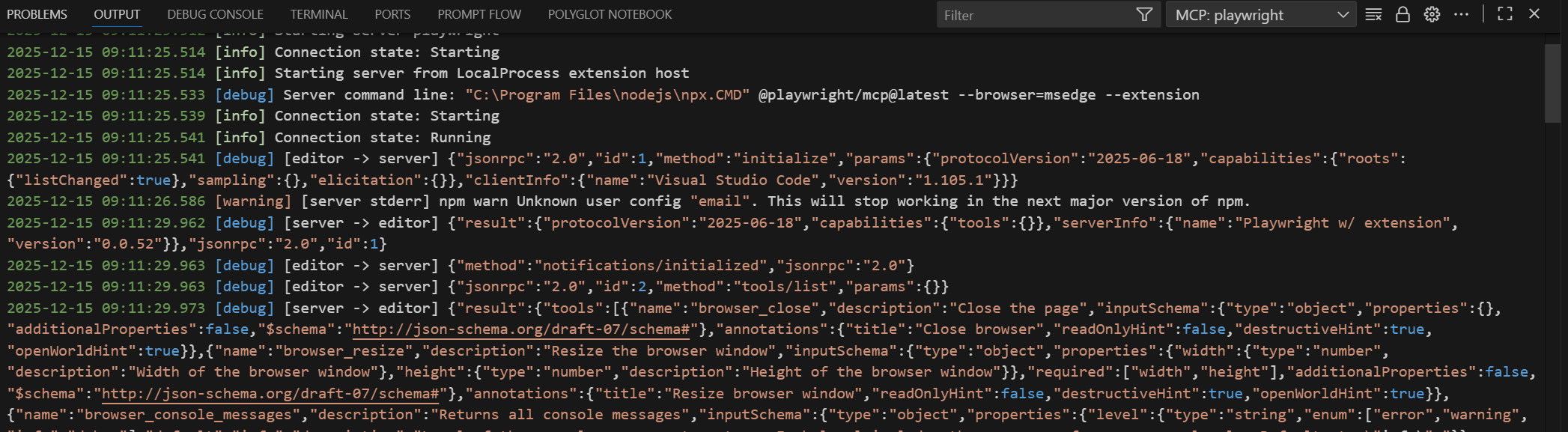
Note for GitHub Copilot Users in VS Code: If you’re using GitHub Copilot in VS Code, you actually have good built-in debugging capabilities. You can set the VS Code log level by using
Ctrl+Shift+Pand selecting “Developer: Set Log Level…” then choosing “Trace”. This will show the MCP communication in the VS Code Output window under the “GitHub Copilot Chat” channel.
However, for Roo and other MCP clients that don’t have this capability, or when you need more control over logging and automated issue detection, the stdio proxy approach described below is still valuable.
The Problem: When MCP Servers Fail Silently
MCP uses stdio (standard input/output) for communication between the client and server. This means all communication happens through stdin and stdout streams, there’s no built-in logging mechanism, the client doesn’t expose server-side errors, and you can’t easily “see” what’s being exchanged. Environment issues are invisible.
When an MCP server fails, you’re essentially debugging a black box. In my case with the Playwright MCP server, I couldn’t answer basic questions:
- Is the server even starting?
- Is it receiving the initialize request?
- Is it crashing immediately?
- Is there an error on stderr?
- What’s the actual failure point?
On top of that, when i ran the playwright MCP package from the CLI or via GitHub Copilot, it worked without any issue, so i couldnt figure out what’s the problem.
The Solution: An MCP stdio Proxy
Since I couldn’t see what was happening, I built a tool to intercept and log all communication between the MCP client and server. The proxy sits between Roo Code and the MCP server, acting as a transparent intermediary:
1
2
3
Roo Code ←→ stdio Proxy ←→ MCP Server
              ↓
         Log File
Key Features
Full Communication Logging
- Logs every JSON-RPC message from client → server
- Logs every response from server → client
- Logs all stderr output (errors)
Process Tree Analysis
- Traces the full parent process chain
- Shows what shell launched the proxy
- Reveals command-line arguments
- Identifies the execution environment
Environment Variable Dump
- Logs all environment variables
- Shows PATH, NODE_PATH, etc.
- Helps identify configuration issues
Transparent Operation
- Forwards all streams bidirectionally
- Preserves exit codes
- Doesn’t interfere with normal operation
How It’s Built
The proxy is available in two versions for cross-platform support:
PowerShell Version (mcp-stdio-proxy.ps1) - Windows
Bash Version (mcp-stdio-proxy.sh) - Linux/macOS/Unix
Both versions provide identical functionality with platform-specific implementations.
The Investigation: What The Logs Revealed
First Run: The Error Captured
With the proxy in place, I could finally see what was happening:
1
2
3
4
5
[2025-12-15 07:30:25.829] CLIENT -> SERVER: {"method":"initialize",...}

[2025-12-15 07:30:28.087] SERVER STDERR: Error: Cannot find module './context'
[2025-12-15 07:30:28.107] SERVER STDERR: Require stack:
[2025-12-15 07:30:28.107] SERVER STDERR: - C:\Users\...\npm-cache\_npx\9833c18b2d85bc59\node_modules\playwright-core\lib\server\agent\agent.js
Aha! The server was crashing immediately with a missing module error. The file context.js was missing from the playwright-core package.
Process Tree: Understanding The Environment
The logs showed the full execution chain:
1
2
3
4
5
6
7
8
[0] powershell (PID: 37412)
    CommandLine: powershell -ExecutionPolicy Bypass -File scripts/mcp-stdio-proxy.ps1 ...
  [1] cmd (PID: 46532)
      CommandLine: cmd.exe /c powershell -ExecutionPolicy Bypass ...
    [2] Code - Insiders (PID: 56884)
        Type: utility node.mojom.NodeService
      [3] Code - Insiders (PID: 32192)
          Main VS Code process
This revealed that Roo uses: VS Code → Node.js utility → cmd.exe → PowerShell → MCP server
Environment Variables: Ruling Out Configuration Issues
The proxy logged all environment variables:
- ✅ PATH included Node.js
- ✅ LOCALAPPDATA was correct
- ✅ npm cache directory was accessible
- ❌ No NODE_PATH issues
- ❌ No permission problems
So it wasn’t an environment issue — it was a corrupted package.
The Root Cause: Corrupted npm Cache
The error pointed to a specific cache directory:
1
C:\Users\...\npm-cache\_npx\9833c18b2d85bc59
This is where npx caches packages. The hash 9833c18b2d85bc59 identifies this specific installation. For some reason, the cached package was missing files.
The Fix: Automated Cache Clearing
Once I understood the issue, I enhanced the proxy to automatically detect and fix it:
1
2
3
4
5
6
7
8
9
# Special handling for npx with Playwright: Clear corrupted cache if detected
if ($Command -eq 'npx' -and $Arguments -like '*@playwright/mcp*') {
    $corruptedCachePath = "$env:LOCALAPPDATA\npm-cache\_npx\9833c18b2d85bc59"

    if (Test-Path $corruptedCachePath) {
        Remove-Item -Path $corruptedCachePath -Recurse -Force
        # npx will now download a fresh copy
    }
}
Second Run: Success!
After clearing the cache:
1
2
3
4
5
6
7
8
9
10
[2025-12-15 07:36:48] INFO: No corrupted cache detected, proceeding normally

[2025-12-15 07:36:50.889] SERVER STDERR: npm warn exec The following package was not found and will be installed: @playwright/mcp@0.0.52

[2025-12-15 07:36:54.536] SERVER -> CLIENT: {
  "result": {
    "protocolVersion": "2025-03-26",
    "serverInfo": {"name": "Playwright w/ extension", "version": "0.0.52"}
  }
}
🎉 The server initialized successfully! It downloaded a fresh copy and returned 21 browser automation tools.
Using The Proxy
Configuration
Add the proxy to your MCP settings (.roo/mcp.json or Copilot settings):
Windows (PowerShell)
1
2
3
4
5
6
7
8
9
10
11
12
13
14
15
16
17
{
  "mcpServers": {
    "playwright-debug": {
      "command": "powershell.exe",
      "args": [
        "-NoProfile",
        "-ExecutionPolicy", "Bypass",
        "-File", "scripts/mcp-stdio-proxy.ps1",
        "npx",
        "scripts/mcp_playwright_communication.log",
        "@playwright/mcp@latest",
        "--browser=msedge",
        "--extension"
      ]
    }
  }
}
Linux/macOS (Bash)
1
2
3
4
5
6
7
8
9
10
11
12
13
14
15
{
  "mcpServers": {
    "playwright-debug": {
      "command": "bash",
      "args": [
        "scripts/mcp-stdio-proxy.sh",
        "npx",
        "scripts/mcp_playwright_communication.log",
        "@playwright/mcp@latest",
        "--browser=msedge",
        "--extension"
      ]
    }
  }
}
Or make it executable and run directly:
1
chmod +x scripts/mcp-stdio-proxy.sh
Arguments (same for both versions):
npx- The command to runscripts/mcp_playwright_communication.log- Log file path@playwright/mcp@latest- Arguments to pass to npx--browser=msedge- More arguments--extension- Even more arguments
Reading The Logs
The proxy creates detailed logs showing:
Communication Flow:
1
2
[07:36:48.558] CLIENT -> SERVER: {"method":"initialize",...}
[07:36:54.536] SERVER -> CLIENT: {"result":{"protocolVersion":"2025-03-26",...}}
Process Tree:
1
2
3
[0] powershell (PID: 37412)
  [1] cmd (PID: 46532)
    [2] Code - Insiders (PID: 56884)
Environment:
1
2
3
ENV: PATH = C:\Users\...\nodejs;...
ENV: NODE_PATH = (not set)
ENV: LOCALAPPDATA = C:\Users\...\AppData\Local
Errors:
1
SERVER STDERR: Error: Cannot find module './context'
Key Insights From This Experience
stdio Debugging Is Hard
Unlike HTTP APIs where you can use browser dev tools or Postman, stdio communication is opaque. You need specialized tooling to see what’s happening.
MCP Clients Need Better Error Reporting
A simple “Request timed out” error doesn’t help developers. Ideally, MCP clients should capture and display stderr from servers, show the last few messages exchanged, provide process exit codes, and log communication to files.
npm Cache Can Corrupt Silently
The corrupted cache issue was particularly insidious because the same hash was used every time (deterministic), npx didn’t detect the corruption, there was no error during package installation, and it only failed at runtime when requiring modules.
Process Chains Matter
Understanding the full process tree helped rule out shell-specific issues. Different shells (bash, cmd, PowerShell) can behave differently with stdio and environment variables.
Automated Fixes Are Powerful
By building issue detection into the proxy, future developers can benefit automatically. The proxy now detects the Playwright cache issue, clears it automatically, logs the action, and continues normally.
Beyond Playwright: Universal MCP Debugging
While I built this to debug Playwright, the proxy works with any MCP server: Python MCP servers, Node.js MCP servers, C# MCP servers, shell script MCP servers, or any stdio-based tool.
Use cases:
- Debugging initialization failures
- Understanding request/response flow
- Comparing different MCP client behaviors (Roo vs Copilot)
- Investigating environment issues
- Performance analysis (timing between messages)
- Protocol conformance testing
The Source Code
The complete proxy is available as GitHub Gists in two versions:
Windows (PowerShell): mcp-stdio-proxy.ps1
Linux/macOS (Bash): mcp-stdio-proxy.sh
Both scripts provide:
- Transparent stdio forwarding
- Bidirectional logging with millisecond timestamps
- Process tree analysis
- Environment variable dumping
- Error detection and automatic fixes
- Exit code preservation
Conclusion
What started as a frustrating “Request timed out” error turned into a deep dive into MCP protocol internals, understanding stdio communication patterns, building a reusable debugging tool, discovering and fixing a corrupted npm cache, and creating automated detection for future issues.
The MCP stdio proxy is now an essential tool in my development toolkit. Whenever an MCP server misbehaves, I can wrap it in the proxy and immediately see what messages are being exchanged, where the failure occurs, what errors are being thrown, and what the environment looks like.
If you’re working with MCP servers and hitting mysterious failures, build (or use) a stdio proxy. It will save you hours of guesswork and blind debugging.
Have you encountered similar MCP debugging challenges? How do you debug stdio-based tools? Let me know in the comments!